You can also use the Countries page to configure which address validation mode should be used on a country-by-country basis. There are 3 options available:
The user workflow for these options is described in further detail on the Address Validation overview page.
Go to the Experian Data Validation Configuration Power App.
Select the Countries page from the left menu.
Find the desired country and update the Validation mode dropdown as required. The country must first be enabled and saved for the dropdown to become active.
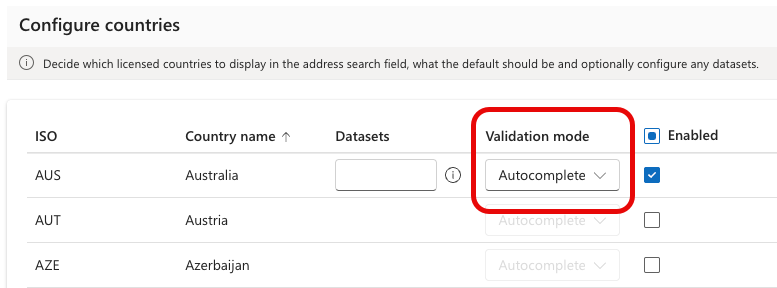
Click the Save button.
Autocomplete supports the full range of over 245 countries, while Validate is currently limited to support for 12 core countries and a subset of datasets as detailed here:
| Country | Dataset | Supported |
|---|---|---|
| Australia | au-address |  |
| au-address-datafusion |  |
|
| au-address-gnaf | |
|
| United Kingdom | gb-address | |
| gb-address-addressbase | |
|
| au-additional-business | |
|
| gb-additional-multipleresidence | |
|
| gb-additional-notyetbuilt | |
|
| Ireland | ie-address-ecad | |
| ie-address-eh | |
|
| ie-additional-eircode | |
|
| New Zealand | nz-address | |
| nz-additional-datafusion | |
|
| Canada | ca-address | |
| United States | us-address | |
| Denmark | dk-address | |
| France | fr-address | |
| Germany | de-address | |
| Luxembourg | lu-address | |
| Netherlands | nl-address | |
| Singapore | sg-address | |